How to Bring SQL Database Out of Emergency Mode | Complete Guide
Emergency Mode is a state of SQL database that allows read only access even if it is corrupted. You can use this mode to recover a database, which is in SUSPECT or RECOVERY pending state, or for other troubleshooting needs. Sometimes, SQL Server itself changes the database to EMERGENCY mode. In this article, we will discuss the causes for the database entering in EMERGENCY mode and how to resolve it.
Common Causes of SQL Database in Emergency Mode Issue
A SQL database may enter emergency mode because of:
- Corruption in Transaction log file
- Improper shutdown of server
- Disk failure
- Corrupted MDF file
- Failed restored operation
- Insufficient disk space
You can also intentionally change the database into emergency mode, when:
- You’re not able to access the MDF/NDF file due to corruption
- Database is in RECOVERY PENDING mode or SUSPECT mode
- You need to repair the inaccessible SQL database
- You need to read data from the database
- You need to run SQL queries on inaccessible MDF file
How to Check whether the Database is in Emergency Mode?
Confirming the state of the database helps you decide which recovery method to apply to bring it out of emergency mode. To check this, you can use sys.databases (system catalog view). It stores metadata of all databases on the SQL instance.
SELECT name, state_desc
FROM sys.databases;
If the result shows EMERGENCY, then the next step is to find out why it happened – due to corruption, missing files, or log issues. For this, you can take the help of SQL Error logs.
Methods to bring SQL Database out of Emergency Mode
You can use the following troubleshooting methods to change the SQL database’s state to normal.
1 – Use ALTER DATABASE Command
This is a useful command to change the state of the database. If emergency mode is due to a minor issue like an incorrect status flag, then it helps in resetting the state.
ALTER DATABASE [bank121] SET ONLINE;If the database fails to come out of emergency mode, then follow next method.
2 – Change Mode to SINGLE USER and Run DBCC CHECKDB
You can try to change the state of database to single-user mode to ensure that no other connections interfere. Before doing this, first verify that AUTO_UPDATE_STATISTICS_ASYNC option is set to OFF. If it is not, it may not change the state. Here is how to check this:
SELECT name,
       is_auto_update_stats_on,
       is_auto_update_stats_async_on
FROM sys.databases;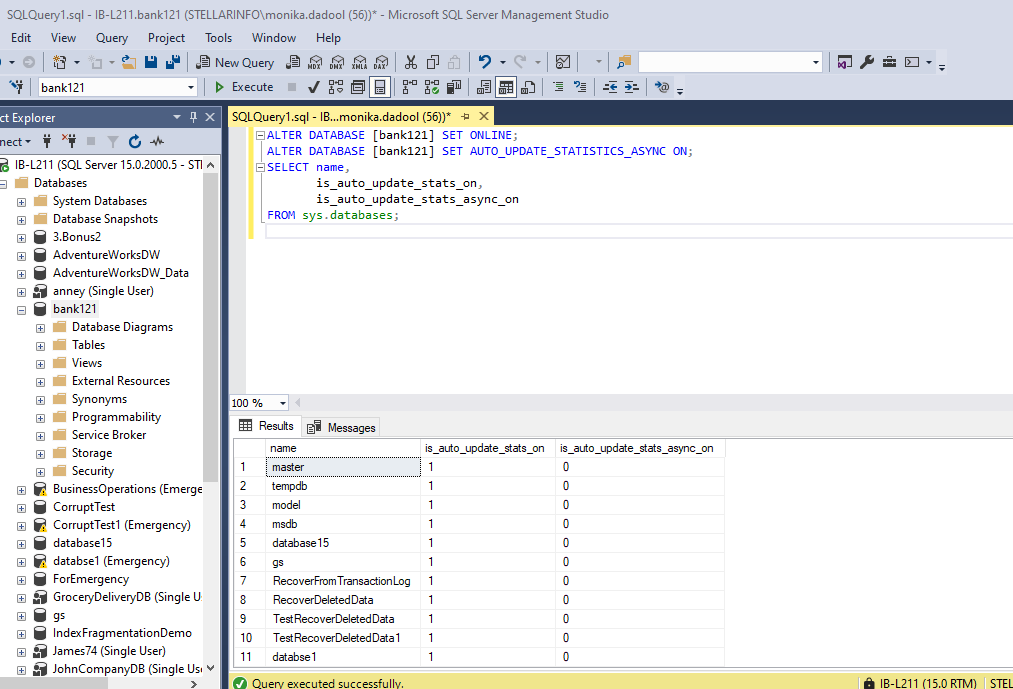
Next, change the mode to SINGLE USER by following these steps:
- In Object Explorer, first connect to SQL Server Database Engine instance, and then expand that instance.
- Right-click the database you want to change and then click Properties.
- In the Database Properties dialog box, select the Options page, and go to Restrict Access. Select SINGLE_USER and then click OK.
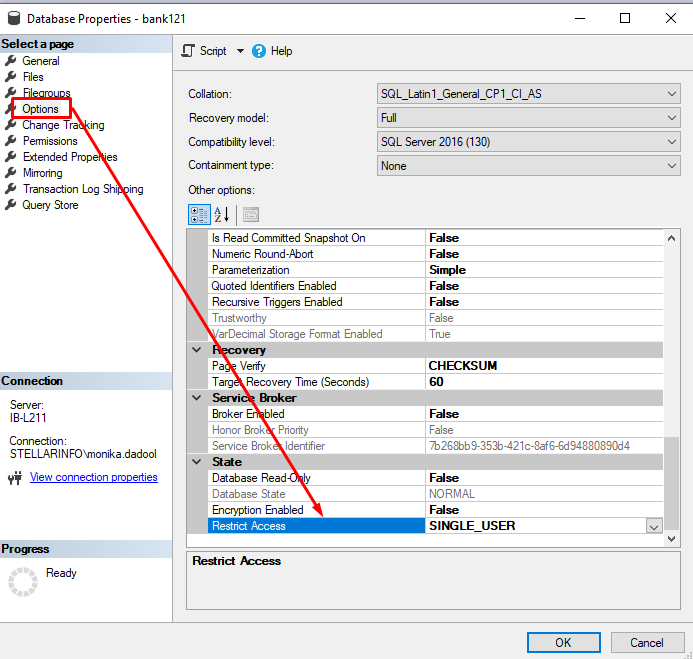
Once the database set to SINGLE_USER mode, then run DBCC CHECKDB to repair SQL database:
DBCC CHECKDB (bank121, REPAIR_ALLOW_DATA_LOSS);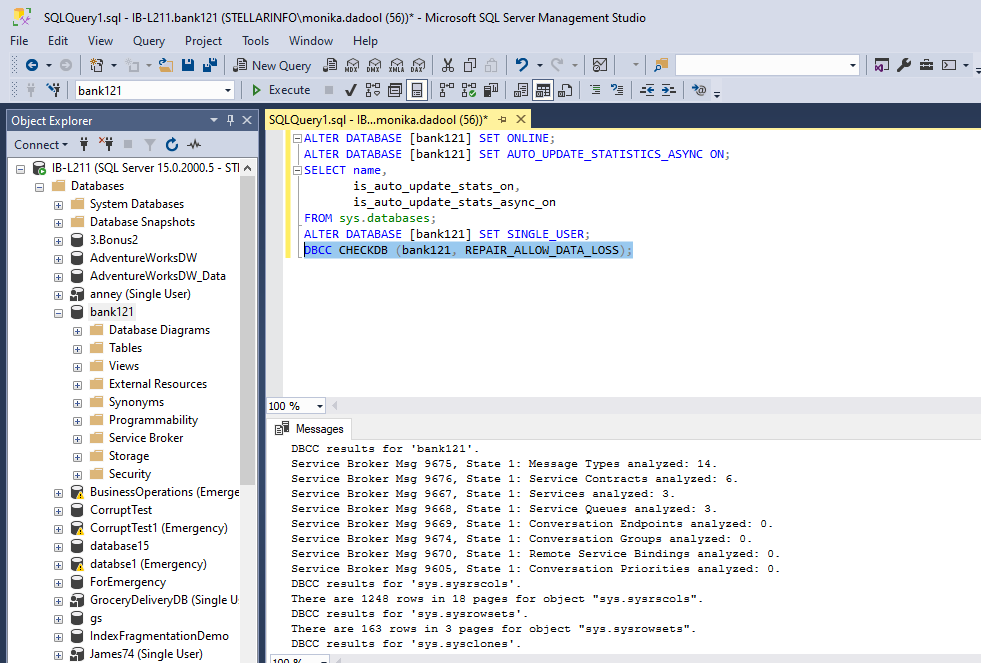
This command can help you bring a database out of emergency mode. But, it may delete corrupted data while repairing database. So, it is suggested to create a backup before running this command.
3 – Restore from Backup
If you want to prevent data loss while repairing database, then you can try to restore your backup. It is a reliable method to bring a database out of emergency mode without data loss. To restore backup, here is the command:
RESTORE DATABASE [bank121]
FROM DISK = 'C:\Backups\bank121.bak'
WITH REPLACE;
Or use the following steps:
- In SSMS, first connect to your Microsoft SQL Server instance.
- Under Object Explorer, click on Server name to expand the server tree.
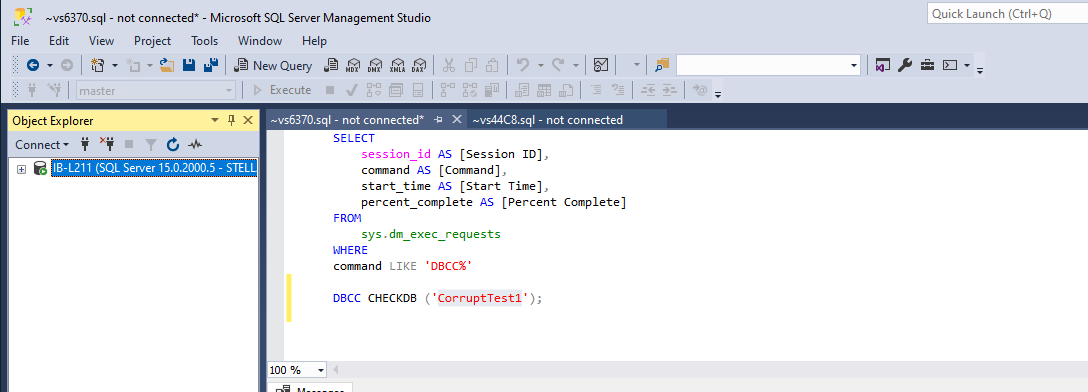
- Now, expand Databases under server name, right-click on the database, click Tasks, and then Restore.
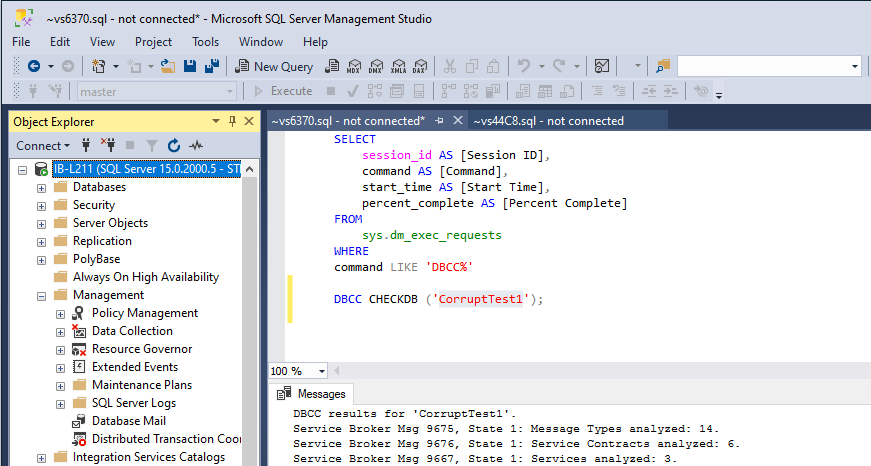
- In the Restore dialog box, on the General window, under the Restore source option, click Device to specify it as a source and browse to the location of the backup sets to restore.
- Click on the three dots. In Select backup devices, select the backup media type, i.e., URL or backup file name. Click Add and then OK.
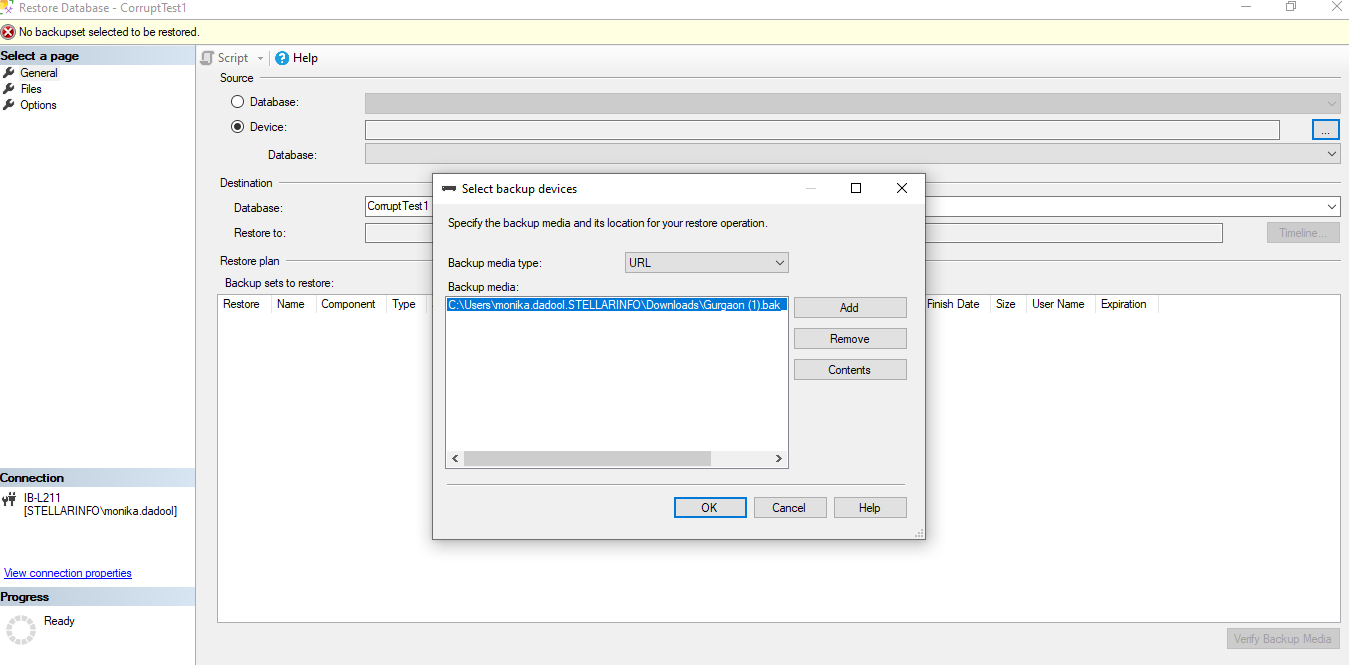
- You will return to the General page. Under source, select the database name. The same database name will automatically be populated in the destination section.
- Next, in the Restore to window, select Timeline, if you want to add a point-in-time to stop the recovery action manually. Else, leave the default settings – “To the last backup taken.“
- Then, the “Backup sets to restore” grid will appear. Select the backup you want to restore.
- Now, click on Files page. In the Restore database files as window, you will see the logical file names from the backup. Check the paths and change them if required. Click OK.
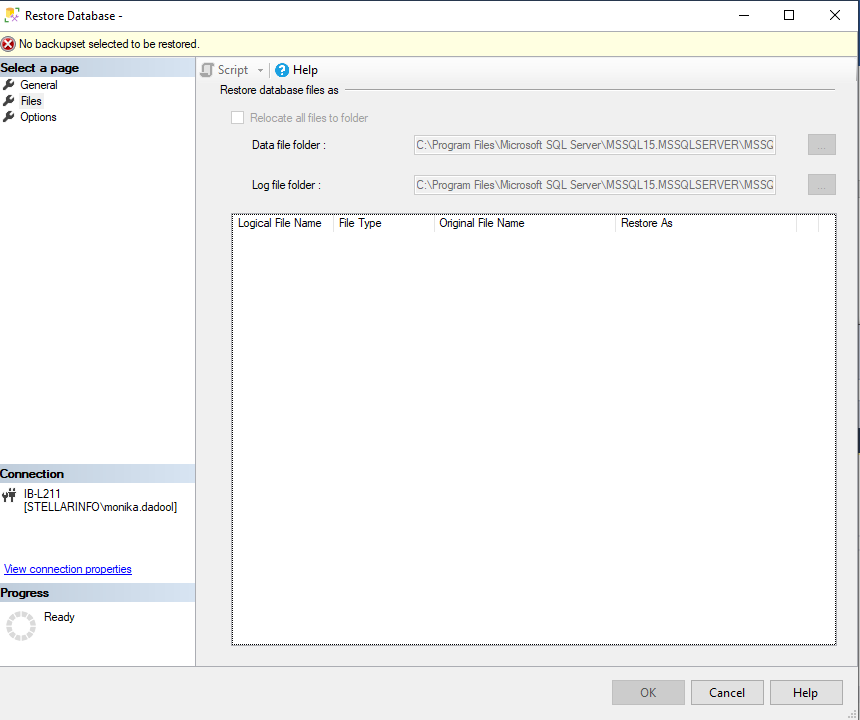
- You can even add advanced restore options. Once you’re done with the required settings, click OK to restore the backup file.
4 – Use a Professional MS SQL Repair Tool
If the backup file is not readable or is corrupted, then you can use a professional tool specialized in SQL repair such as Stellar Repair for MS SQL, which is specifically designed to scan and repair MDF/NDF files with complete precision. It can easily restore pages, tables, stored procedures, and other objects from corrupt SQL database with zero data loss.
Why use Stellar Repair for MS SQL?
- Repairs severely corrupted MDF/NDF files.
- Helps you restore database even if backup file has corruption or missing objects.
- Minimizes data loss unlike DBCC CHECKDB with REPAIR_ALLOW_DATA_LOSS command.
- Repairs tables, indexes, triggers, and stored procedures without data loss.
- Can help recover accidentally deleted rows or objects from SQL database.
- Helps transition corrupt database from emergency mode back to ONLINE state quickly and safely.
Conclusion
If your database remains stuck in EMERGENCY mode, try setting it to ONLINE mode, running DBCC CHECKDB, or restoring from a valid backup and other methods discussed above. If backup is not available or is corrupt, then use any reliable SQL repair tool, like Stellar Repair for MS SQL. It can repair damaged MDF/NDF files with no file-size restrictions. It helps in restoring tables, triggers, indexes, and relationships with 100% integrity. It helps in resolving “SQL Database is not coming out of EMERGENCY mode” issue if it is due to severe corruption.
The post How to Bring SQL Database Out of Emergency Mode | Complete Guide appeared first on The Crazy Programmer.
from The Crazy Programmer https://ift.tt/O7k3UIF
0 Response to "How to Bring SQL Database Out of Emergency Mode | Complete Guide"
Post a Comment